Some notes on software development on the Mac, with particular emphasis on XCode...
Contents:
- The LLDB RPC server exits unexpectedly (posted 2022.06.14)
- Cheat sheet for <ctime> and <time.h> (posted 2017.01.02)
- Dylibs: "no suitable image found" (posted 2016.05.22)
- Some handy command-line diagnostic tools (posted 2022.07.04)
- dyld: lazy symbol binding failed (posted 2016.05.11)
- When Macports 'selfupdate' fails (posted 2015.10.29)
- Working with XCode and git (posted 2015.05.20)
- Be conservative with header search path settings (posted 2015.03.21)
- MacPorts cheat-sheet (posted 2015.01.18)
- Where do the debug builds reside? (posted 2014.09.08)
- Building against GLib (posted 2013.02.14)
- Stack corruption (posted 2013.02.04)
- stringstream doesn't convert integers to strings (posted 2012.12.21)
- CpResource error: "...is longer than MAXPATHLEN (1024)" (posted 2012.05.26)
- Loader warning: visibility settings (posted 2012.02.29)
- Navigating the search path jungle posted 2008.06.02
- Compiler: type ‘std::deque....’ is not derived from ‘...’
- Compiler error: template with C linkage
- Loader: cputype mismatch?
- Compiler: class ‘...’ has no field named ‘...’
- Compiler: conflicting types for built-in function ‘scalb’
- When the debugger or compiler start acting flaky
- No stdin when debugging a C++ command line utility?
- How to import libsndfile into a project
- XCode keyboard shortcuts
- Don’t use ZeroLink!
- How to include non- .h files
- How to move source files into a new project
 The LLDB RPC server exits unexpectedly
posted 2022.06.14 [MacOS 12.4 Monterey; XCode 13.4.1]
The problem: When launching an app in Xcode debugger mode, Xcode intermittently presents a popup error window:
Could not launch [app name]. The LLDB RPC server has exited unexpectedly. You may need to manually terminate your process. Please file a bug if you have reproducible steps.
Likewise, when launching the app from the command line, it exits immediately, with a "Killed 9" message.
Restarting Xcode doesn't help. Restarting the Mac doesn't help. The error message continues to appear intermittently.
The console log adds this info:
Exception Type: EXC_BAD_ACCESS (SIGKILL (Code Signature Invalid)) Exception Codes: UNKNOWN_0x32 at 0x00000001014f0000 Exception Codes: 0x0000000000000032, 0x00000001014f0000 Exception Note: EXC_CORPSE_NOTIFY Termination Reason: Namespace CODESIGNING, Code 2
Clearly it's a code-signing issue.
Fix: Check that all dependent dynamic libraries are correctly code-signed. To find the libraries:
% otool -L mylib.dylib
For each library listed, do the following:
% codesign --verify --deep --strict --verbose=2 foobar.dylib
If the library is code-signed correctly, you'll see a message like this:
foobar.dylib: valid on disk foobar.dylib: satisfies its Designated Requirement
If a library has a code-signing error, you'll see a message like this:
foobar.dylib: invalid signature (code or signature have been modified) In architecture: arm64
The fix is to rebuild the dynamic library.
This worked for me.
Cheat sheet for <ctime> and <time.h>
posted 2017.01.02
When coding with <ctime>, I can never keep all the functions and their arguments straight. So I made this handy cheat sheet. Click the image to see the PDF version.
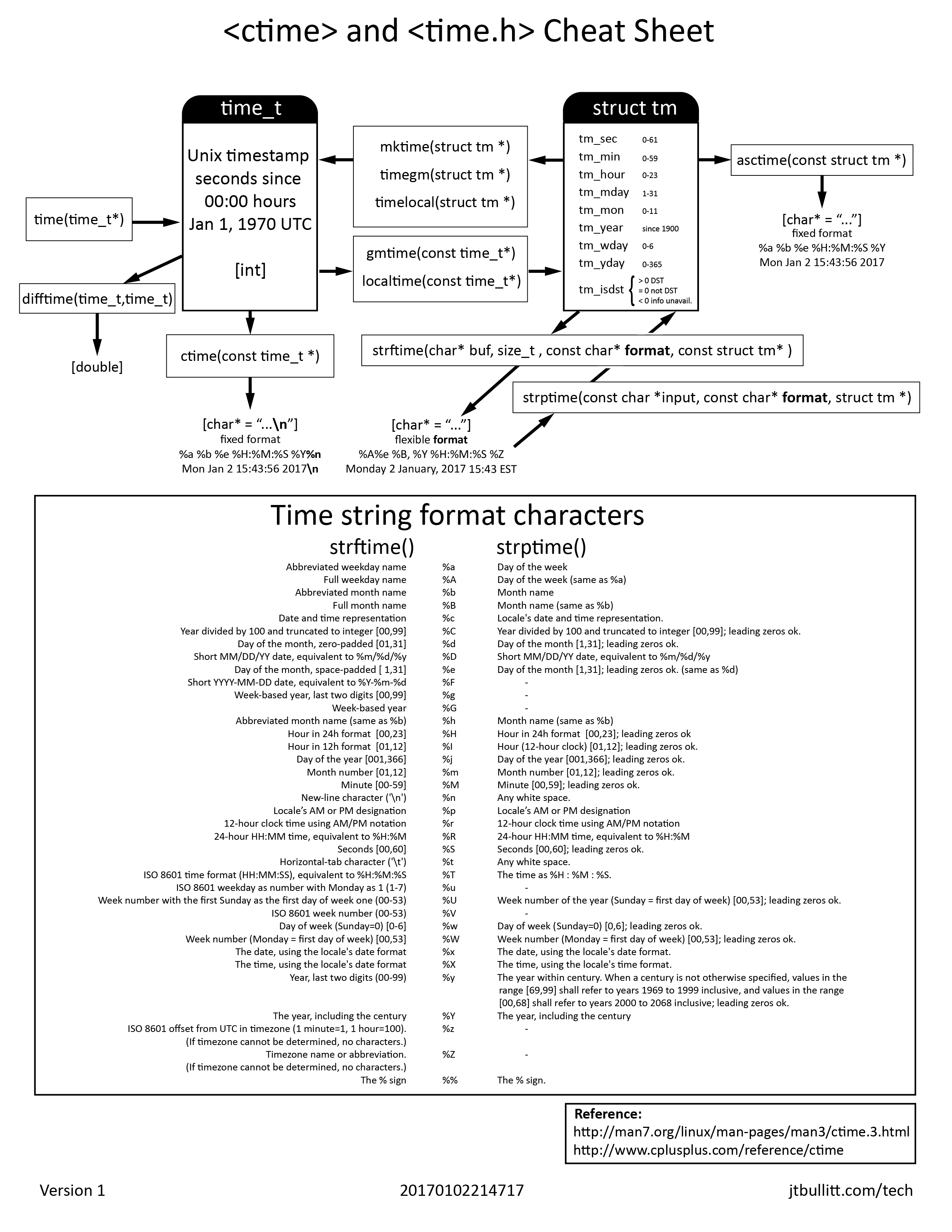
Click image to enlarge
Keywords for indexing: time_t strptime strftime mktime timegm timelocal gmtime localtime asctime.
Dylibs: "no suitable image found"
posted 2016.05.22 [OS 10.10.5 Yosemite XCode 7.2.1]
Problem: After successfully building and deploying a dynamic library, you might get an error like this when running a program that links against it:
dyld: Library not loaded: /./librt130.dylib Referenced from: /Users/jtb/Library/Developer/Xcode/DerivedData/...... Reason: no suitable image found.
I know the library was installed in /opt/earthsound/lib/, so there's something definitely fishy about that path (/./librt130.dylib). Let's see what otool has to say about this dylib's install name:
% otool -D /opt/earthsound/lib/librt130.dylib /opt/earthsound/lib/librt130.dylib: /./librt130.dylib %
The "install name" of the dylib is definitely wrong.
Fix: In XCode, go to the Build Settings for this target, and look for "Dynamic Library Install Name" under the "Linking" section:
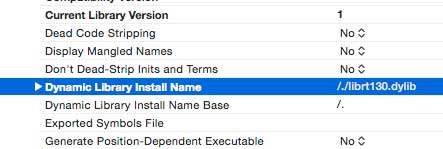
Delete the offending entry (/./librt130.dylib) and rebuild the library. The library should now have the correct "install name":
% otool -D /opt/earthsound/lib/librt130.dylib /opt/earthsound/lib/librt130.dylib: /opt/earthsound/lib/librt130.dylib %
Programs will now be able to use the dylib as expected.
Some handy command-line diagnostic tools
posted 2022.07.04 [OS 12.4 Monterey]
% file ... |
Reports the type and architecture of a file. Example: file someFile |
% otool ... |
Provides useful info about an executable or dynamic or static library. Example: otool -L foobar.dylib lists the other shared libraries used in library foobar.dylib |
% nm ... |
Shows the symbol table (i.e., variables and function names) present in a library or executable. Example: nm -g --defined-only foobar.dylib lists the global symbols that have been defined in foobar.dylib. See man nm and nm --help for more options. (N.B. as of 20220704, man nm isn't up to date with nm --help.) |
% codesign ... |
Manages the code signature of a file. Example: % codesign --verify --deep --strict --verbose=2 foobar foobar: valid on disk foobar: satisfies its Designated Requirement % To replace the code signature with an ad-hoc one: % codesign --sign - -f foobar foobar: replacing existing signature % |
dyld: lazy symbol binding failed
posted 2016.05.11 [OS 10.10.5 Yosemite XCode 7.2.1]
Problem: An executable that runs just fine on the development machine generates a "lazy symbol binding" error when it's run on the (supposedly "identical") deployment machine. In this example, the executable usgsEvents runs fine on the dev machine ("paris.local"):
paris.local% usgsEvents Found 12 events: Thu May 5 13:49:30 2016 3.8 -113.99 36.48 0 Nevada (35km SSE of Bunkerville, Nevada) Thu May 5 22:27:06 2016 5.5 -107.12 18.67 0 Mexico (241km SW of Tomatlan, Mexico) ...(etc.)... paris.local%
When run on the deployment machine ("broadcaster.local") it throws this error:
broadcaster.local% usgsEvents dyld: lazy symbol binding failed: Symbol not found: __ZN8jtbUtils14LocalTimeToUTCEPl Referenced from: /opt/earthsound/bin/usgsEvents Expected in: /opt/earthsound/lib/libjtb_utils.dylib dyld: Symbol not found: __ZN8jtbUtils14LocalTimeToUTCEPl Referenced from: /opt/earthsound/bin/usgsEvents Expected in: /opt/earthsound/lib/libjtb_utils.dylib Trace/BPT trap broadcaster.local%
In other words, the executable's symbol jtbUtils::LocalTimeToUTC is missing from the dylib on the deployment machine.
Fix: Double-check that the dylib on the deployment machine is up-to-date with the one on the dev machine.
It's in the category of "duh", but I need the reminder.
When Macports 'selfupdate' fails
posted 2015.10.29 [OS 10.10.5 Yosemite XCode 7.1]
Problem: After upgrading to XCode 7.1, an attempt to update Macports fails:
% sudo port -v selfupdate ---> Updating MacPorts base sources using rsync receiving file list ... done base.tar sent 31276 bytes received 230167 bytes 27520.32 bytes/sec ...... SNIP (skipping lots of lines) ...... checking Xcode location... /Applications/Xcode.app/Contents/Developer checking Xcode version... 7.1 checking whether the C compiler works... no configure: error: in `/opt/local/var/macports/sources/rsync.macports.org/release/tarballs/base': configure: error: C compiler cannot create executables See `config.log' for more details Command failed: cd /opt/local/var/macports/sources/rsync.macports.org/release/tarballs/base && CC=/usr/bin/cc OBJC=/usr/bin/cc ./configure --prefix=/opt/local --with-install-user=root --with-install-group=admin --with-directory-mode=0755 --enable-readline && make SELFUPDATING=1 && make install SELFUPDATING=1 Exit code: 77 Error: Error installing new MacPorts base: command execution failed To report a bug, follow the instructions in the guide: http://guide.macports.org/#project.tickets Error: /opt/local/bin/port: port selfupdate failed: Error installing new MacPorts base: command execution failed %
Fix: Accept the new XCode license:
% sudo xcodebuild -license
Follow the instructions to accept the new license. sudo port selfupdate should now work properly.
If you still have problems, double-check that you have the XCode command-line tools installed:
% sudo xcode-select --install
Working with XCode and git
posted 2015.05.20 [OS 10.10.3 Yosemite XCode 6.3.1]
- Migrating an existing XCode project to git
-
- Create a remote repo on github, Bitbucket, etc. Be sure to create a .gitignore for C++ and a README.md.
- To the .gitignore file append this line at the end:
# Macintosh cruft .DS_Store
- Make a note of the URL to the remote repo (we'll call it "URL_TO_REMOTE_REPO")
- On your local computer:
% cd path/to/my/project % git init % git add . % git remote add origin URL_TO_REMOTE_REPO % git pull origin master
- Open your project in XCode. (If XCode was already open when you did the previous step, you may need to re-launch it.)
- Open XCode's project navigator. Notice that each of the source code files is listed with an accompanying "?", to indicate that it has not yet been committed to the local repo.
- In XCode's project navigator, select all the files flagged with "?", then pull down Source Control > Add Selected Files (or right-click and select Source Control > Add Selected Files).
- Pull down Source Control > Commit..., enter a commit message, and check the Push to remote checkbox.
- Visit your remote repo on github or Bitbucket to confirm that all the files are there.
Your project is now successfully sync'ed with the remote repo. From here on, you can push your code changes to the remote repo using XCode's Source Control > ... menu.
To confirm that everything's working, check out the repo to a second Mac, and build the project. If the build fails because of missing #include files or libraries, make sure that those files on Mac #2 have the same paths, relative to the project, that they had on Mac #1. It's a good idea to use the same file hierarchy structure on all the Macs you'll be building on.
- Tagging
Because XCode 6 does not support git tagging, tags have to be handled manually, via the command line.
- Launch a terminal window and go into your local project folder:
% cd path/to/my/project
- List the tags that git already knows about:
% git tag %
- Tag the current version and provide a useful commit message:
% git tag -a v0.01 -m "Tagging version 0.01" %
- List the tags that git knows about:
% git tag v0.01 %
- Push the tag to the remote repo:
% git push --tags Counting objects: 1, done. Writing objects: 100% (1/1), 155 bytes | 0 bytes/s, done. Total 1 (delta 0), reused 0 (delta 0) To git@bitbucket.org:[USERNAME/PROJECT].git * [new tag] v0.01 -> v0.01 %
- Launch a terminal window and go into your local project folder:
Other git one-liners:
| Checkout a particular tag | % git checkout tags/v0.003 |
| rename a file | % git mv oldFileName newFileName |
| add and commit a file to the remote | % git add SOME_NEW_FILE % git commit -m "Adding an awesome new feature!" % git push origin master |
| list branches | % git branch |
| delete local branch | % git branch -D branchName |
| set aside local changes | % git stash |
| throw out the stash | % git stash drop |
| apply the stash to the local | % git stash apply |
Be conservative with header search path settings
posted 2015.03.21 [XCode 6.2 / OS 10.10.2 Yosemite]
Problem: After months of trouble-free use, XCode builds suddenly started throwing tons of errors like this:
"Unknown type name 'uint_8'" In file included from /opt/earthsound/src/lookback/lookback/RTFilename.cpp:1: /opt/earthsound/src/lookback/lookback/RTFilename.h:8:10: In file included from lookback/RTFilename.h:8: /opt/local/include/boost/tr1/tr1/iostream:16:12: In file included from /opt/local/include/boost/tr1/tr1/iostream:16: /opt/local/include/boost/tr1/detail/config_all.hpp:48:10: In file included from /opt/local/include/boost/tr1/detail/config_all.hpp:48: /opt/local/include/boost/compatibility/cpp_c_headers/cstdlib:8:10: In file included from /opt/local/include/boost/compatibility/cpp_c_headers/cstdlib:8: /Applications/Xcode.app/Contents/Developer/Platforms/MacOSX.platform/Developer/ SDKs/MacOSX10.10.sdk/usr/include/stdlib.h:65:10: In file included from /Applications/Xcode.app/Contents/Developer/Platforms/ MacOSX.platform/Developer/ SDKs/MacOSX10.10.sdk/usr/include/stdlib.h:65: /Applications/Xcode.app/Contents/Developer/Platforms/MacOSX.platform/Developer/ SDKs/MacOSX10.10.sdk/usr/include/sys/wait.h:110:10: In file included from /Applications/Xcode.app/Contents/Developer/Platforms/ MacOSX.platform/Developer/ SDKs/MacOSX10.10.sdk/usr/include/sys/wait.h:110:
Similarly, these:
/Applications/Xcode.app/Contents/Developer/Platforms/MacOSX.platform/Developer/ SDKs/MacOSX10.10.sdk/usr/include/inttypes.h:235:8: Unknown type name 'intmax_t' /Applications/Xcode.app/Contents/Developer/Platforms/MacOSX.platform/Developer/ SDKs/MacOSX10.10.sdk/usr/include/sys/resource.h:195:2: Unknown type name 'uint8_t' /Applications/Xcode.app/Contents/Developer/Platforms/MacOSX.platform/Developer/ SDKs/MacOSX10.10.sdk/usr/include/sys/resource.h:196:2: Unknown type name 'uint64_t' ...
Long story short: XCode was loading the wrong headers. My target's "Header Search Paths" build settings contained /opt/local/include/** and /opt/local/lib/**, which is way too generous! This caused countless non-standard header files from my (recently updated) MacPorts ports tree to be loaded into the precompiler.
Fix: Remove /opt/local/include/** and /opt/local/lib/** from the "Header Search Paths" build settings. Replace them with much more specific paths to the desired include directories. In my particular case, this meant replacing them with /opt/local/include/glib-2.0 /opt/local/lib/glib-2.0/include /opt/local/include/. It's up and running again!
MacPorts cheat-sheet
posted 2015.01.18 [XCode 6.1.1 / OS 10.10.1 Yosemite]
| Where to find the docs | MacPorts Guide |
| customize MacPorts | % vi /opt/local/etc/macports/macports.conf |
| update the ports tree | % sudo port -v selfupdate |
| show what's installed | % port installed |
| search for available ports | % port search zzzzzzz |
| show which ports are outdated | % port outdated |
| remove all previously installed ports | % sudo port -f uninstall installed |
| upgrade outdated ports | % sudo port upgrade outdated |
| install a port | % sudo port install zzzzzzz |
- Managing multiple port versions
-
By default,
/opt/localis reserved for MacPorts. Don't put anything else in there! You can, however, keep multiple MacPorts instances on your computer — just install them somewhere else. I keep my primary ports in/opt/local(the default), but keep builds for 32-bit architectures in/opt/loc32. The MacPorts config file for the 32-bit ports lives in/opt/loc32/etc/macports/macports.conf. Make sure you know which instance ofportis in yourPATHenvironment, or you'll drive yourself crazy building the wrong ports!
Where do the debug builds reside?
posted 2014.09.08 [XCode 4.5.2 / OS 10.7.5]
Q: When running a debugging scheme for a command-line program, where does the build actually reside?
A: It lives in the build target directory. But during a debugging session, XCode uses a symbolic link to that file. To find that symlink, start by looking in ~Library/Developer/Xcode/DerivedData. Then cd into the subdir whose name starts with that of your project, followed by an absurdly long string of gibberish characters. From there, look in the subdir Build/Products/Debug.
For example: ~/Library/Developer/Xcode/DerivedData/myproject-bayrxljwsuqsqtwekudskvvscruc/Build/Products/Debug.
Why should you care? Because if your CLP takes a file path as an argument (that you've specified in the XCode scheme settings), the XCode debugger will look for that path relative to the above DerivedData directory (instead of relative to the target build directory), and your CLP will probably not work as you intended. Phfft.
Building against GLib
posted 2013.02.14(XCode 4.5.2)
Problem: When building a project that uses glib, the compiler may throw this error:
'glibconfig.h' file not found.
Fix: In my case, where I've installed GLib to /opt/local/, most of GLib's header files are in /opt/local/include/glib-2.0/. But the GLib installation also puts glibconfig.h at /opt/local/lib/glib-2.0/include/glibconfig.h. XCode's target build settings must therefore include both directories in its Header Search Paths. In my case, the error goes away when I change Header Search Paths to include both /opt/local/include/** and /opt/local/lib/**.
Stack corruption
posted 2013.02.04[XCode 4.5.2]
Problem: Very flaky runtime segmentation fault. Xcode debugger stack trace revealed that when a vector container was instantiated in a class residing in a dylib, main() would disappear from the stack. Upon completion of the instantiation, execution would (understandably) halt, spewing this error:
Address doesn't contain a section that points to a section in a object file.
Fix: In the XCode project settings, select the active target, and look for the preprocessor macro settings. Delete _GLIBCXX_DEBUG=1 _GLIBCXX_DEBUG_PEDANTIC=1 . See also "Stringstream doesn't convert integers to strings", below.
stringstream doesn't convert integers to strings
posted 2012.12.21[XCode 4.2.1]
Problem: This code
stringstream ss; ss << "This is the answer: " << 42 << ". OK?" << endl; cout << ss;
should generate output like this:
This is the answer: 42. OK?
Instead, it looks like this:
This is the answer:
due to a bug in the GCC compiler in XCode debug mode. Note that everything from the first integer onwards is dropped.
Fix: In the XCode project settings, select the active target, and look for the preprocessor settings. Delete _GLIBCXX_DEBUG=1 _GLIBCXX_DEBUG_PEDANTIC=1 . See stackoverflow.com.
CpResource error: "...is longer than MAXPATHLEN (1024)"
posted 2012.05.26
Problem: During the build Xcode [4.2.1] throws a "... is longer than MAXPATHLEN" error.
CpResource /Users/jtb/Library/Developer/Xcode/DerivedData/maxcpp2-ambxcvcbiofkwfambuwyfqekivbj/ Build/Products/Debug/example2.mxo /Users/jtb/lib/MaxExterns/example2.mxo/Contents/Resources/example2.mxo cd /Users/jtb/src/maxcpp2 builtin-copy -exclude .DS_Store -exclude CVS -exclude .svn -exclude .git -exclude .hg -resolve-src-symlinks /Users/jtb/Library/Developer/Xcode/DerivedData/maxcpp2-ambxcvcbiofkwfambuwyfqekivbj/ Build/Products/Debug/example2.mxo /Users/jtb/lib/MaxExterns/example2.mxo/Contents/Resources error: '/Users/jtb/lib/MaxExterns/example2.mxo/Contents/Resources/example2.mxo/ Contents/Resources/example2.mxo/Contents/Resources/example2.mxo/Contents/Resources/ example2.mxo/Contents/Resources/example2.mxo/Contents/Resources/example2.mxo/Contents/ Resources/example2.mxo/Contents/Resources/example2.mxo/Contents/Resources/example2.mxo/ Contents/Resources/example2.mxo/Contents/Resources/example2.mxo/Contents/Resources/ example2.mxo/Contents/Resources/example2.mxo/Contents/Resources/example2.mxo/Contents/ Resources/example2.mxo/Contents/Resources/example2.mxo/Contents/Resources/example2.mxo/ Contents/Resources/example2.mxo/Contents/Resources/example2.mxo/Contents/Resources/ example2.mxo/Contents/Resources/example2.mxo/Contents/Resources/example2.mxo/Contents/ Resources/example2.mxo/Contents/Resources/example2.mxo/Contents/Resources/example2.mxo/ Contents/Resources/example2.mxo/Contents/Resources/example2.mxo/Contents/Resources/ example2.mxo/Contents/Resources/example2.mxo/Contents/Resources/example2.mxo/Contents/ Resources/example2.mxo' is longer than MAXPATHLEN (1024).
Fix: In the project navigator, select the product that you're trying to build. In the Utility area, click on the file inspector icon. Look for the "Target membership" tab. Make sure that the targets are unchecked. This avoids that recursive file path loop during the build.
Loader warning: visibility settings
posted 2012.02.28[XCode 4.2.1]
Problem: XCode 4.2.1 loader issues this warning:
ld: warning: direct access in __ZN9__gnu_cxx26__concurrence_unlock_errorC2Ev to global weak symbol __ZTVN9__gnu_cxx26__concurrence_unlock_errorE means the weak symbol cannot be overridden at runtime. This was likely caused by different translation units being compiled with different visibility settings.
Fix: In project (or product) settings, look for "Code Generation" > "Hidden Local Variables". Set this to "No" and build the project again. Works for me.
Navigating the search path jungle
posted 2008.06.02
Problem: The relationships between the various search path settings baffle me. There are Preference panels for both the Target and the Project (can’t figure out which has priority over the other); within those there are settings for the SDK Path and Library Search Paths. When I try to link to a library (say, xyz.dylib) in /usr/local/lib, it appears that it is not sufficient to simply add this path to the Library Search Paths: the link editor complains that it can’t find /Developer/SDKs/MacOSX10.4u.sdk/usr/local/lib/xyz.dylib . No surprise there, because the SDK Path setting says that the SDK path is prepended before all library paths. But when I put "../../../usr/local/lib" in Library Search Paths, the linker complains that it can’t find "../../../usr/local/xyz.dylib." Huh? Where’s the prepend? Harrumph.
Kludge: Put "/usr/local/lib" in Library Search Paths and create a symbolic link to that directory:
% cd /Developer/SDKs/MacOSX10.4u.sdk/usr % ln -s /usr/local ./local
XCode’s linker now finds the library OK.
Compiler: type ‘std::deque....’ is not derived from ‘...’
posted 2008.06.02
Compiler error:
error: type ‘std::deque<T_Shell<T>::builtin, std::allocator<T_Shell<T>::builtin> >’ is not derived from type ‘T_Shell<T>’
Fix: Change
typedef deque<builtin>::const_iterator cBuiltinIterator;
To:
typedef typename deque<builtin>::const_iterator cBuiltinIterator;
Compiler error: template with C linkage
posted 2008.06.02
Compiler error:
error: template with C linkage
Fix: move /usr/include to somewhere else (e.g., ~/src/usr_include) and edit XCode’s header search path accordingly (Project > Edit project setttings > Build > Collection: Search paths > Header search paths).
Loader: cputype mismatch?
posted 2007.02.01
Problem: Loader complains about an architecture mismatch between the project and a dynamic library:
/usr/bin/ld: warning /Developer/SDKs/MacOSX10.4u.sdk/usr/local/lib/libsndfile.1.0.17.dylib cputype (18, architecture ppc) does not match cputype (7) for specified -arch flag: i386 (file not loaded)
This error does not appear with the Debug build; only with the Release build. And I swear I never did an i386 build (why would I want to??).
Fix: Clean the project (both the Debug and Release). In the Project Settings, choose the Architectures setting and set it to "ppc i386". Rebuild. Clean again. Now change the setting back to "ppc". Rebuild. Success! — just don’t ask me why.
Follow-up [071110]: Mike V sent in the following info:
I had the same problem when linking "-arch i386" while trying to link with ppc only dynamic library; I tried your sulution but still was getting i386 as a separate build.
I tried changing Project Settings -> Cross-Develop Using Target: from 10.4 (Universal) to Current Mac,it still gave me a list of undefined symbols i was able to pass a number of files that has been compiled.
What fixed the problem when i did
grep -R ’i386’ my_pro..xcodeproj
and found the line with ARCH, which is also mentioned in here.
here is the line(s):
... /* Release */ = { isa = XCBuildConfiguration; buildSettings = { ARCHS = ( ppc, i386, );
Removing/uncommenting i386 solves the problem!!! also if i comment it out xcode will remove the line afterwards by itself.
Apparently when i first open build options you have
Architectures set to "$(NATIVE_ARCH)"
Maybe what you can emphasize in your notes is that you need to double click these values NOT to enter them manually. e.g "ppc i386" instead of "$(NATIVE_ARCH) i386" which i have done, because it still displayed "ppc i386" after i clicked <enter> to end editing the Architectures field.
I would highly recommend updatin this information for your tutorial (not that i’ve discovered it, just that i was quite frustraded and dont want this for other people) 8D
Thanks, Mike!
Compiler: class ‘...’ has no field named ‘...’
posted 2007.02.01
Compiler error:
error: class ’Gram’ does not have any field named ’T_Packet’
Change:
Gram :: Gram(string aName,int ns) : T_Packet(aName, Gram_PACKET_TYPE, Gram_WORDTYPENAME, Gram_PACKET_DESC, Gram_PACKET_EXT) { ... }
To:Gram :: Gram(string aName,int ns) : T_Packet<Gram_DATATYPE>(aName, Gram_PACKET_TYPE, Gram_WORDTYPENAME, Gram_PACKET_DESC, Gram_PACKET_EXT) { ... }
Compiler: conflicting types for built-in function ‘scalb’
posted 2007.02.01
Compiler error: conflicting types for built-in function ’scalb’
Fix: Ignore it. This appears to be a known issue with the Apple SDK.
When the debugger or compiler start acting flaky
posted 2007.02.01
Now and then the debugger starts acting flaky, losing track of breakpoints and wandering all over the place, no matter how you step into, over, or out the code. At other times, the compiler starts going wild.
Fix: Try one or more of these:- Quit XCode, relaunch, and try again.
- Clean, rebuild, and try again.
- Create a new project from scratch, copy all the source files into the new project, and try again.
FWIW, #3 is the only one that works reliably for me.
No stdin when debugging a C++ command line utility?
posted 2007.02.01
Problem: Can’t enter keyboard input when debugging a C++ command line utility.
Fix: Select Debug->Standard I/O Log. Output will appear in the "Standard I/O" window. You can type tty input there.
How to import libsndfile into a project
posted 2007.01.10
libsndfile is an open-source C library to allow programmers to read and write sound files via a simple, standard interface. It handles many formats: WAV, AIFF, Octave, PAF, etc. You, the programmer, don’t have to worry about the dirty business of headers, endian-ness, etc. — libsndfile takes care of all that invisibly.
Getting libsndfile to work with XCode projects is fairly straightforward, but in case you (like me) are never quite sure what you’re doing, the following overview may be helpful.
Note: By default, the Finder hides root-level directories (/usr, /lib, /etc, etc.,) from dialog boxes. To work with libraries like libsndfile, you have to make them visible.
- Compile
libsndfileaccording to the instructions in the README and INSTALL files. Note that the default installation putssndfile.hin/usr/local/include, and the library itself in/usr/local/lib. - Create a new XCode project
- Copy
make_sin.cfrom thelibsndfile"examples" directory into your project. - Tell
XCodewhere to find the include file:- Project → Edit Project Settings
- Click "Build"
- In "Collection" popup, select "Search Paths"
- Double-click "Header Search Paths" and add the path
/usr/local/includeif it’s not already listed there. Leave the "Recursive" checkbox unchecked. - Click "OK".
- Double-click "Library Search Paths" and add the path
/usr/local/libif it’s not already listed there. Leave the "Recursive" checkbox unchecked. - Click "OK"
- Close the Project Info window.
- Add the library to your project:
- In the project window, select the project icon in the "Groups and Files" pane.
- Project → Add to Project... (or control-click the project icon).
- Navigate to the library you wish to include (probably
libsndfile.a. If you want to copy the library to your project (why would you??), click the checkbox. Click "Add."
- Compile your project. You may have to do some minor tweaking to
make_sin.cto get it to compile. For example, I had to change this:int main (void)to this:int main (int argc, char * const argv[])
That’s all there is to it.
Addendum 070201: After I upgraded to XCode 2.3, the link editor had some problems linking to this library. See Loader issues, above.
XCode keyboard shortcuts
posted 2007.01.01
| to do this... | ...type this |
|---|---|
| toggle between source code and include files | Cmd-Opt-UpArrow |
Don’t use ZeroLink!
posted 2007.01.01
With ZeroLink turned on, the program executes, then aborts:
ZeroLink: unknown symbol ’__ZN7T_ShellI9WorkspaceEC1Ev’
With ZeroLink turned off, the build fails, but now the messages are a little more useful:
/usr/bin/ld: Undefined symbols: _AIFF_verbose T_Shell<Workspace>::Init() T_Shell<Workspace>::T_Shell() T_Shell<Workspace>::~T_Shell() SAC::SAC() SAC::~SAC() AIFF::AIFF() AIFF::~AIFF() ... ...{plus lots more}... ... collect2: ld returned 1 exit status
Moral: ZeroLink makes it hard to see what’s going on. Keep ZeroLink turned off so you can debug those loader errors.
How to include non- .h files
posted 2007.01.01
Use care when include’ing non .h files in your source code. For example:
#include "foo.h"resolves tofoo.h, wherever it lives in your nested hierarchy of project dirs.#include "bar.cpp"resolves to./bar.cpp. If it lives outside this directory, then give it a relative pathname:#include "../foo/bar.cpp"
How to move source files into a new project
posted 2007.01.01
After creating a new project, open the project window. Right-click on the "Source" folder in the "Groups & Files" pane. Select Add → Existing Files... and navigate to the files you want to include.
When the popup window appears, check the Copy items into destination group’s folder box. Check the Recursively create groups... radio button. Click Add. Copies of the selected files will be placed in the project source directory.
